Instructions of Use
TEE Buddy extension stays inactive until you visit a golf course booking website, preventing system overload. If you have opted for Plus/Premium (henceforth mentioned as "Paid") version, a payment or login prompt would be visible during first use. Refer membership management instructions at the end of this page.
In order to book your slots successfully, the foremost requirement of anyone is to register yourself as an active user of the golf course and get access to the booking website. Once you have logged in the extension will activate itself on the reservation page, with an action button like this. Do not click the TeeBuddy icon on the browser header but the one that emerges within the webpage.

The primary action button when clicked reveals the functionalities based on the version as shown below. Let's explore each controls provided by the extension interface.
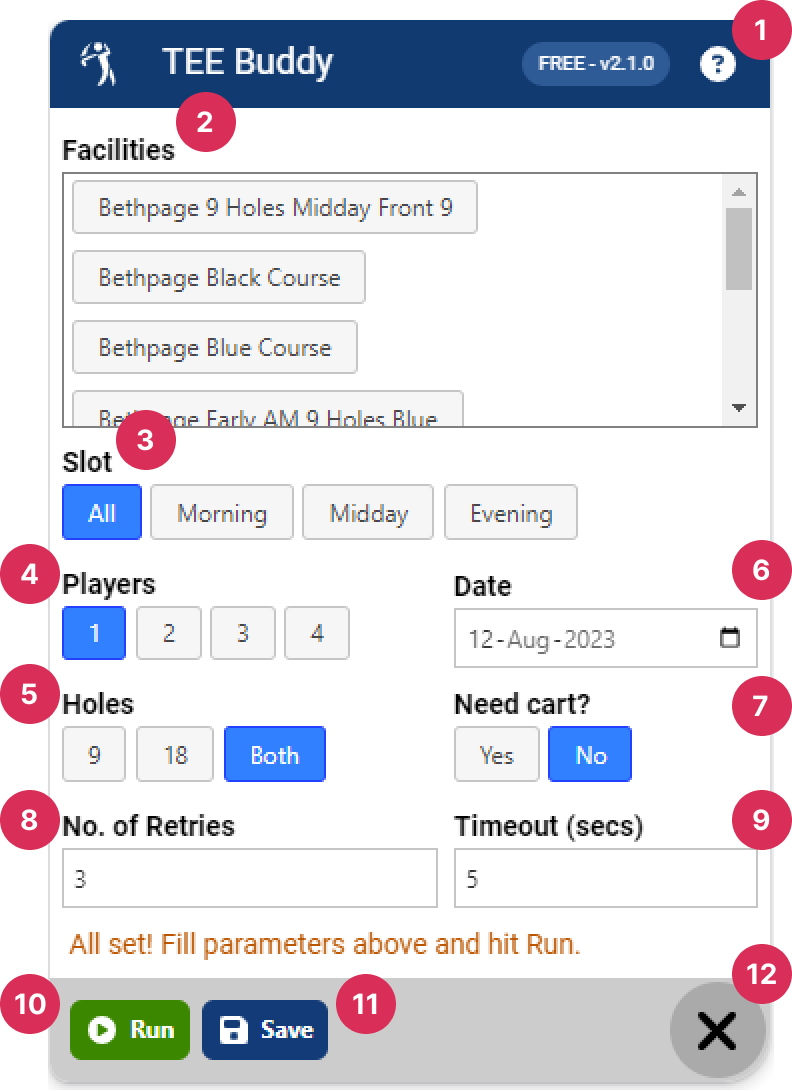
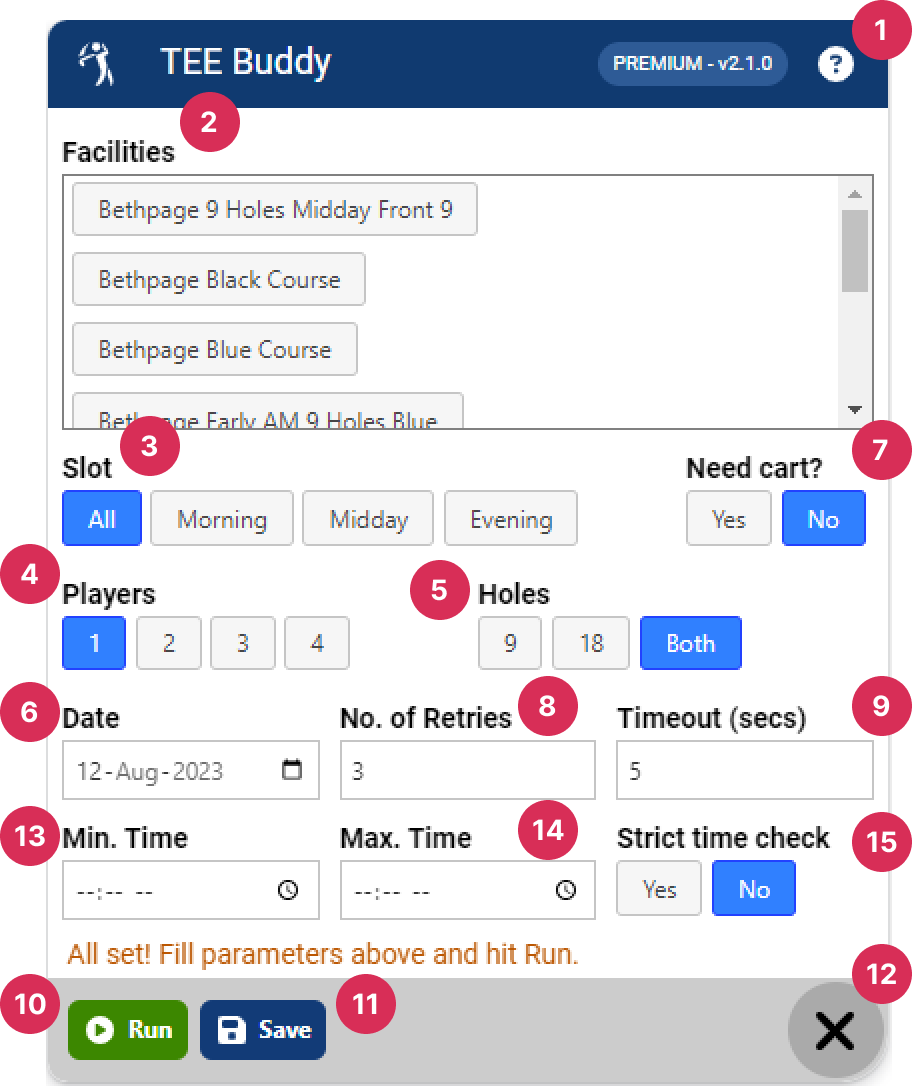
- Header - This panel displays the version installed and "Help" button which provides these instructions in brief.
- Facilities - Displays all selectable courses provided on the reservation page. You can select one or more courses and reorder them before searching, depending on your version.
- Slot - Select relevant option based on the golf course to search for booking slots.
- Players - Select relevant option based on the golf course support for number of players.
- Holes - Select relevant option based on the golf course support.
- Date - Pick a date to search slot for.
- Need cart? - Select relevant option if your golf course supports it.
- No of Retries - Number of times to repeat the search when you run TEE Buddy.
- Timeout - Number of seconds the bot will wait before retrying again.
- Run - Click this button to start the bot process. Once started this button stransforms itself to Abort to stop it in case you changed your mind.
- Save - Click this to save your settings. In case you have signed in to your browser the settings can be synced across devices. Saves parameters will be prefilled the next time when the extension is activated.
- Close - Location of the primary action button that toggles the extension.
- Min Time - Time of the day from where you would like to search for slots.
- Max Time - Time of the day until where you would like to search for slots. Combine both Min and Max times to pick a slot between them.
- Strict time check - Whether to strictly adhere to your preferred time. If Yes, then the booking will fail if there are no available slots. If No, the bot will book the first available slot for the given day if the preferred slot isn't available.
While the bot is running you will be notified about its progress. In case of expired/cancelled membership or hibernation, the Run button will be disabled.
If the extension is not visible as intended, check if your browser requires additional Enable User Scripts permissions or if any other extension is interfering with its functionality.
Managing your membership
When the Paid version tries to activate itself for the first time, it will try to verify your membership status with a pop-up as shown.
If you are new to TEE Buddy kindly enter your email and card details to subscribe. You might need to reload the page once completion of the process.
If you already hold an active membership, click on theLogin link and use your email to get a login token via email.
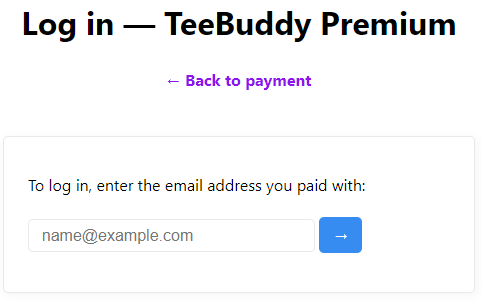
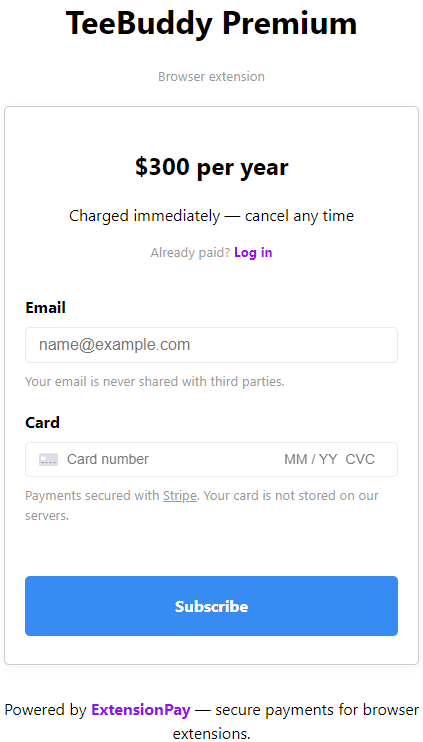
If an active membership exists and the payment window is opened again, it will show a link to cancel your membership if you wish to.
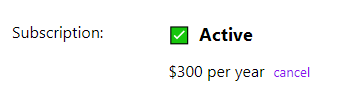
Important Note: If you are using the Paid version, please ensure that you have an active membership. The bot will not function if your membership has expired or is inactive. You can manage your membership at any time.
Trial Results
TeeBuddy works great for booking times at Bethpage Golf Courses, it's been tested by a number of members and proven to result in 95% success rate. If you want to have a good chance of booking a tee time on Bethpage Golf course you need to try this once. You can select from the following courses and depending on your subscription level, you can select all of them during the booking process for a better chance of getting a tee time.
Pro Tip : Avoid searching for slots in popular busy courses when they are released, instead wait until they get freed up due to cancellations for better results. More details on question number 8 of FAQ page.
- Bethpage State Park Golf Black Course - Resident
- Bethpage State Park Golf Black Course - Non Resident
- Bethpage State Park Golf Red Course - Resident
- Bethpage State Park Golf Red Course - Non Resident
- Bethpage State Park Golf Blue Course - Resident
- Bethpage State Park Golf Blue Course - Non Resident
- Bethpage State Park Golf Green Course - Resident
- Bethpage State Park Golf Green Course - Non Resident
- Bethpage State Park Golf Yellow Course - Resident
- Bethpage State Park Golf Yellow Course - Non Resident
- Crab Meadow Golf Course - Resident
- Crab Meadow Golf Course - Non Resident
- Montauk Downs State Park Golf Course - Resident
- Montauk Downs State Park Golf Course - Non Resident
- Sunken Meadow State Park Golf Course - Resident
- Sunken Meadow State Park Golf Course - Non Resident
Booking Notes for Bethpage & Montauk Downs
Both Bethpage and Montauk Downs now require payment at the time of booking. Because of this new policy, you will need to take a few extra setup steps to get the most out of TEE Buddy.
TEE Buddy is highly effective at catching late cancellations. The moment someone cancels, TEE Buddy grabs the slot and triggers the booking. However, under the courses' new system, ForeUp will send you a verification email. You must complete the reservation with a credit card within 5 minutes of receiving this email.
Following the steps below will ensure you never miss that 5-minute window.
Important Requirement: You must use Gmail as your email provider for this automated workflow to function.
Setup Instructions
Step 1: Install the TEE Buddy Extension
- Open the Google Chrome browser on your computer.
- Go to the Chrome Web Store and search for TEE Buddy.
- Click Add to Chrome and confirm the installation.
Step 2: Install the cloudHQ Extension
- While still in the Chrome Web Store, search for cloudHQ.
- Locate and install the Mobile Text Alerts for Gmail extension.
- This extension bridges your email and phone by converting specific incoming emails into instant text messages.
Step 3: Configure cloudHQ Alerts
- Open Gmail on your computer.
- Open the cloudHQ Mobile Text Alerts dashboard.
- Enter your mobile phone number in the setup field and click Update.
- Create a new text alert rule using the official ForeUp email address: no-reply@foreupsoftware.com
- Save the rule. Any email from this address will now trigger an instant text notification to your phone.
Step 4: Set Up Chrome Remote Desktop on Your Phone (Optional)
Because you only have 5 minutes to complete the payment on your computer, a remote desktop setup allows you to finish the booking directly from your phone.
- On your mobile phone, open the browser and download the Chrome Remote Desktop app (available on iOS and Android).
- Set up the connection between your mobile phone and the computer running your TEE Buddy extension.
- Ensure both devices are linked and signed into the same Google account.
- Test the connection beforehand to make sure you can seamlessly view and control your computer's screen from your phone during a live tee-time alert.